You signed in with another tab or window. Reload to refresh your session.You signed out in another tab or window. Reload to refresh your session.You switched accounts on another tab or window. Reload to refresh your session.Dismiss alert
I have this issue too - Windows 11 25H2 25H2 v 26200.7309 (KB5070311). I have uninstalled and reinstalled the update and can confirm the above issue exists
UPDATE - I have just tried installing the latest Windows update: 2025-11 Preview Update (KB5070311) (26200.7309) - and the problem is still there
I've also tried the "Inetcpl.cpl" solution below but to no effect.
Same problem here. Uninstalled, reinstalled, checked registry etc. all didn't help.
The Open Shell Toolbar ist gone and the setting to activate it, too.
I lost Classic Explorer Bar on 1 of my 2 computers, Removed, reinstalled, also checked Managed Add-ons for IE and the options are still listed and enabled.
Windows 11 25H2 build 26200.7309
if the command to enable Classic Explorer Bar is missing try this
run Inetcpl.cpl
go to Programs tab and Manage add-ons, there you should see the two components needed; enable both Classic Explorer Bar and ExplorerBHO Class
Hello,
ExplorerBHO Class was inactive so i enabled it, but no result, i cannot see the option in the "option" menu in the Explorer
Windows is V26200.7462
and classic shell is OpenShellSetup_4_4_197-bisesytn version
I do not want to uninstall windows updates
It's true that a recent update (windws) made some dialog boxes black where they were still white in dark mode.
Correction. Wasn't ExplorerBHO Class that wasn't inactive. That was active.
It was Classic explorer bar that wasn't anymore and that i made active.
Thanks for the quote that questioned me. and realize i didn't meaned what i was writing.
5 start menu > settings > control panel and R+Click and check Classic Explorer Bar entry
but tbh I’m not sure if this was the sequence of events, try playing around with them in different order, you could try with #2 to reset save then change some of the settings to see if that works
It might be worth updating Edge as this uses part of IE that we can no longer access
I haven't updated my main PC to 26H2 yet 'cos I don't want Classic Explorer Bar to vanish 🫨
However, on my spare Mini PC I find that Classic Explorer Bar works on Win11 Pro 26H2 (build 26300.9457).
Classic Shell was not installed previously. I installed 4.4.198 then followed the summary I posted back in May. Classic Explorer Bar works just fine.
Also I restored a back up from my main PC. Worked fine. The Explorer Bar buttons are the same on both PCs as expected.
I'm holding off the upgrade to 26H2 on my main PC until I've seen a couple of Patch Tuesdays on the spare Mini PC 🤞
Update: Classic Explorer Bar is still working after Oct update KB5127648 to build 26300.9711 🥳
Anyone else update to 26H2 that can comment on whether the Classic Explorer Toolbar is still there or not in File Explorer? One person here said it's still there and another said it's not.
Can anyone comment on this? Windows keeps nagging to upgrade to 26H2.
30. Anyone else update to 26H2 that can comment on whether the Classic Explorer Toolbar is still there or not in File Explorer? One person here said it's still there and another said it's not.
I confirm switching to 26H2 using the 26H2 Enablement Package did not cancel my Registry fix. The Classic Explorer Bar from Open Shell is still there and fully functional. I have even updated from 26H2 26300.9445 to 26H2 26300.9711, it still works fine. I also clean installed 26H2 on a virtual machine (to test it before switching my PC from 25H2 to 26H2), installed Open Shell, the Classic Explorer Bar didn't work by default, but when I did the Registry fix it worked. So don't hesitate to install 26H2 Enablement Package and switch to 26H2.
You may have to register to download it, but it's worth it. This forum is very useful for everything about Windows 11. Much faster response than official Microsoft community.
PS: If you run 24H2 or 25H2 all you need is the 26H2 Enablement package to switch to 26H2, but if for some reason use the ISO to do a full upgrade, then the Registry fix might be undone. No worries, just do it again and Classic Explorer Bar will work again.
This is my Classic Explorer Bar in Windows 11 26H2 26300.9711:
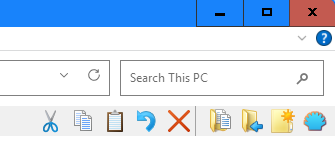
The Windows 10 style of File Explorer is thanks to Explorer Patcher utility. The good old red close button (X) is thanks to Aero Lite theme. The nice icons are the Windows 8.1 system icons. I used Customizer God to extract them from the Windows 8.1 system file and import them in the respective Windows 11 system file.
TIP: All these icons except the new folder icon are from Windows 8.1 You have to use Customizer God to extract the icons from C:\Windows\SystemResources\imageres.dll.mun and then inject them in the respective file in Windows 11. You cannot modify that file directly, copy to another folder first and then you need to take ownership and grant full access to both the folder and the file to replace the original with the modified. The new folder icon is from Windows XP, I didn't like those of Windows 7 or 8.
Just wanted to add that with a new 26H2 install using @rixtech method brought explorer bar back great.
Nothing else needed to be done: #2365 (comment)
I then updated my old 25H2 install once i knew it worked, as I had been waiting to update until a good fix was available.
I had done all the other vivetool and uninstalling updates, but due to hitting the wall, and the MS MIDI rollout, i was waiting.
All seems great now with Open Shell Explorer bar and my MIDI stuff.
Well, Classic Explorer ToolBar is back after updating to 26H2 and following the registry patch instructions but now I can't get rid of the redundant system toolbar (or at least place the Classic Toolbar in the same row). Also, Menu bar has returned too but the items show in black on black. What's more: the Menu Bar appears BELOW the Classic Toolbar (she the word "Archivo" below the Classic toolbar) and even if I place it at the same row and lock the bars, the next time I open an Explorer window it is again below the Classic Toolbar, taking valuable vertical space
UPDATE: What I believed it to be a Menu Bar is completely non functional. It is composed of "Archivo", "Edición", "Ver", "Herramientas" (File, Edit, View, Tools) but clicking on them doesn't open any menu or does nothing at all.
I use Windhawk to change that main toolbar back to the collapsable ribbon type and that saves space. ( I will look at which mod that is when on my computer).
The non-functional menu at the top of the navigation pane is something I have not seen before.
OK. After all day trashing with the ExplorerPatcher, WindHawk, OldNewExplorer and the Register, I managed to solve the issue. This is my configuration right now:
1- I'm using OldNewExplorer just to place the details pane at the bottom, so this should not be related with the solution. I placed it here just in case anybody else is using it, to know what options I keep disabled since they could affect the solution.
2- You can see in the ExplererPatcher window that I have the Windows 11 command bar (not Windows 7 command bar or Windows 10 ribbon). I keep it because now the breadcrumbs are working (the reason many people reverted to an older version) and the refresh button is before the address bar that seem more logical to me. Also, this allows to keep the tabs feature that is removed if you use Windows 7 command bar.
3- I have the Windows 11 File Explorer Styler mod in WindHawk with the theme NoCommandBar to remove the Command Bar thus saving space and removing redundant options (as long as you keep them in the Classic explorer Toolbar, of course)
4- I have also created a new mod for WindHawk that removes the old Menu Bar leaving the Classic Explorer Toolbar intact.
I have not published this mod yet, but here is the code in case you want to try it. It basically looks at the bars and find the one that has more than 2 buttons or less than 21 and identifies three of those buttons to check if they are Edit, View and Tools and then removes that bar. ChatGPT did all the hard work because I had no idea how to program this 😅
Feel free to try it, report any bug and enhance it and share the enhanced code.
#include <windows.h>
#include <commctrl.h>
#include <cwchar>
// ==WindhawkMod==
// @id hide-classic-explorer-menu-bar
// @name Hide Classic Explorer Menu Bar
// @description Hides the legacy Explorer menu bar while keeping the Open-Shell toolbar.
// @version 2.0
// @author ArtofWalls & ChatGPT
// @include explorer.exe
// @architecture x86-64
// ==/WindhawkMod==
static HANDLE g_stopEvent = nullptr;
static HANDLE g_scanEvent = nullptr;
static HANDLE g_thread = nullptr;
static HWINEVENTHOOK g_hook = nullptr;
// Identifica la barra clásica y oculta su banda en el ReBar.
static void HideClassicMenuBar(HWND hwnd)
{
if (!IsWindow(hwnd))
return;
wchar_t cls[32] = {};
if (!GetClassNameW(hwnd, cls, ARRAYSIZE(cls)) ||
lstrcmpiW(cls, L"ToolbarWindow32") != 0)
return;
int count = (int)SendMessageW(
hwnd, TB_BUTTONCOUNT, 0, 0
);
if (count < 3 || count > 20)
return;
bool hasEdit = false;
bool hasView = false;
bool hasTools = false;
for (int i = 0; i < count; i++)
{
TBBUTTON button = {};
if (!SendMessageW(
hwnd, TB_GETBUTTON, (WPARAM)i,
(LPARAM)&button))
continue;
if (button.idCommand == 32832)
hasEdit = true;
else if (button.idCommand == 32896)
hasView = true;
else if (button.idCommand == 32960)
hasTools = true;
}
if (!hasEdit || !hasView || !hasTools)
return;
HWND rebar = GetParent(hwnd);
if (!rebar || !IsWindow(rebar))
return;
wchar_t parentClass[32] = {};
if (!GetClassNameW(
rebar, parentClass, ARRAYSIZE(parentClass)) ||
lstrcmpiW(parentClass, L"ReBarWindow32") != 0)
return;
int bands = (int)SendMessageW(
rebar, RB_GETBANDCOUNT, 0, 0
);
for (int i = 0; i < bands; i++)
{
REBARBANDINFOW band = {};
band.cbSize = sizeof(band);
band.fMask = RBBIM_CHILD | RBBIM_STYLE;
if (!SendMessageW(
rebar, RB_GETBANDINFOW,
(WPARAM)i, (LPARAM)&band))
continue;
if (band.hwndChild != hwnd)
continue;
if (band.fStyle & RBBS_HIDDEN)
return;
band.fMask = RBBIM_STYLE;
band.fStyle |= RBBS_HIDDEN;
SendMessageW(
rebar, RB_SETBANDINFOW,
(WPARAM)i, (LPARAM)&band
);
return;
}
}
static BOOL CALLBACK ChildCallback(HWND hwnd, LPARAM)
{
wchar_t cls[32] = {};
if (GetClassNameW(hwnd, cls, ARRAYSIZE(cls)) &&
lstrcmpiW(cls, L"ToolbarWindow32") == 0)
{
HideClassicMenuBar(hwnd);
}
return TRUE;
}
static BOOL CALLBACK TopCallback(HWND hwnd, LPARAM)
{
wchar_t cls[32] = {};
if (!GetClassNameW(hwnd, cls, ARRAYSIZE(cls)))
return TRUE;
if (lstrcmpiW(cls, L"CabinetWClass") == 0 ||
lstrcmpiW(cls, L"ExploreWClass") == 0)
{
EnumChildWindows(hwnd, ChildCallback, 0);
}
return TRUE;
}
static void ScanExplorerWindows()
{
EnumWindows(TopCallback, 0);
}
// El callback no modifica ventanas: solo solicita un repaso.
// Esto evita hacer el trabajo de ocultación dentro del evento.
static void CALLBACK WinEventCallback(
HWINEVENTHOOK,
DWORD event,
HWND hwnd,
LONG idObject,
LONG idChild,
DWORD,
DWORD)
{
if (!hwnd ||
idObject != OBJID_WINDOW ||
idChild != CHILDID_SELF)
{
return;
}
if (event == EVENT_OBJECT_CREATE ||
event == EVENT_OBJECT_SHOW)
{
if (g_scanEvent)
SetEvent(g_scanEvent);
}
}
static DWORD WINAPI ScanThread(void*)
{
// Recibe eventos de creación y aparición de ventanas
// del proceso Explorer actual.
g_hook = SetWinEventHook(
EVENT_OBJECT_CREATE,
EVENT_OBJECT_SHOW,
nullptr,
WinEventCallback,
GetCurrentProcessId(),
0,
WINEVENT_OUTOFCONTEXT
);
// Escaneo inicial para las ventanas ya existentes.
ScanExplorerWindows();
HANDLE events[2] = {
g_stopEvent,
g_scanEvent
};
for (;;)
{
DWORD result = MsgWaitForMultipleObjects(
2,
events,
FALSE,
2000,
QS_ALLINPUT
);
if (result == WAIT_OBJECT_0)
break;
if (result == WAIT_OBJECT_0 + 1 ||
result == WAIT_TIMEOUT)
{
// Evento recibido o repaso de seguridad.
ScanExplorerWindows();
continue;
}
if (result == WAIT_OBJECT_0 + 2)
{
// Los eventos WinEvent fuera de contexto se
// entregan al hilo que mantiene el bucle de mensajes.
MSG msg;
while (PeekMessageW(
&msg, nullptr, 0, 0, PM_REMOVE))
{
TranslateMessage(&msg);
DispatchMessageW(&msg);
}
continue;
}
break;
}
if (g_hook)
{
UnhookWinEvent(g_hook);
g_hook = nullptr;
}
return 0;
}
BOOL Wh_ModInit()
{
g_stopEvent = CreateEventW(
nullptr, TRUE, FALSE, nullptr
);
g_scanEvent = CreateEventW(
nullptr, FALSE, FALSE, nullptr
);
if (!g_stopEvent || !g_scanEvent)
{
if (g_stopEvent)
CloseHandle(g_stopEvent);
if (g_scanEvent)
CloseHandle(g_scanEvent);
g_stopEvent = nullptr;
g_scanEvent = nullptr;
return FALSE;
}
g_thread = CreateThread(
nullptr, 0, ScanThread, nullptr, 0, nullptr
);
if (!g_thread)
{
CloseHandle(g_stopEvent);
CloseHandle(g_scanEvent);
g_stopEvent = nullptr;
g_scanEvent = nullptr;
return FALSE;
}
return TRUE;
}
void Wh_ModUninit()
{
if (g_stopEvent)
SetEvent(g_stopEvent);
if (g_thread)
{
WaitForSingleObject(g_thread, INFINITE);
CloseHandle(g_thread);
g_thread = nullptr;
}
if (g_stopEvent)
{
CloseHandle(g_stopEvent);
g_stopEvent = nullptr;
}
if (g_scanEvent)
{
CloseHandle(g_scanEvent);
g_scanEvent = nullptr;
}
}
Strange... i find that is do NOT have the "Classic Explorer navigation bar" even installed (although I DID at one point).
Yet my navigation bar is as if i DO have that.
So i am guessing the registry mods must have done something?
I had not updated Win11 in months to avoid losing the Explorer bar setup, but when i saw the fix (& tried it on a new install) i updated and did the 3 registry mods.
(I am not using any dark mode mod yet, but i intend to).
I like to have the "ribbon" setup as it keeps the search settings handy.
Strange... i find that is do NOT have the "Classic Explorer navigation bar" even installed (although I DID at one point).
Yet my navigation bar is as if i DO have that.
So i am guessing the registry mods must have done something?
I'm thinking that because you DID have the Classic Explorer Bar (a.k.a. Toolbar for Windows Explorer) installed previously, the registry edits brought it back. The Toolbar is installed as part of the Classic Explorer installation. It can be toggled off, perhaps you did that in the past. Back in XP/Win7 days I used to toggle it off because the native Windows Explorer had fairly good built-in customization available.
Unless you explicitly uninstalled Classic Explorer, it was still there, but we just couldn't see it in the File Explorer (or it would flash up for half a second then vanish). The Windows Updates from late 2025 were toggling off various features we liked and foisting that ugly New+ command bar on us.
This particular issue (#2365) and the discussion are about "How do I get the Classic Explorer Bar back?". My summary #2365 (comment) described what worked for me (and is still working). Perhaps the registry mods also affect the navigation bar if you've disabled the tabs in File Explorer (I've come to like the tabs, so I had not looked at the behaviour when disabling them).
I was just looking at Windhawk and I see that I have "Classic Explorer navigation bar" installed and enabled with style "Classic Navigation bar"
When I change it to "Classic ribbon UI (no tabs)" I see the Quick Access Toolbar the Ribbon (minimized). Maybe I had it enabled before the Classic Explorer bar started misbehaving, I can't recall.
31. Hi @LloydPhillips-Dev
I was just looking at Windhawk and I see that I have "Classic Explorer navigation bar" installed and enabled with style "Classic Navigation bar"
When I change it to "Classic ribbon UI (no tabs)" I see the Quick Access Toolbar the Ribbon (minimized). Maybe I had it enabled before the Classic Explorer bar started misbehaving, I can't recall.
...........
So, what happens if you disable the Windhawk "Classic Explorer navigation bar"?
I installed it to check and see, and no change occurs whether i enable / disable it or choose "Classic navigation bar" OR "Classic ribbon UI (no tabs).
It's like mine is stuck with the ribbon, and i can't recall any other mods i did except Windhawk.
I will check my a default install and see what happens with just the registry mods and no Windhawk.
I just upgraded my main PC from Windows 11 26H2 26300.9711 to 26300.9818. After restart File Explorer would conflict with Explorer Patcher utility and crash/restart all the time. The solution was to press CTRL+ALT+DEL and start Task Manager. Then from there execute msedge to open Microsoft Edge so I could download Explorer Patcher and install it again to do an in-place upgrade/repair. Classic Explorer Bar from Open Shell still is visible and works, so the respective Registry fix wasn't cancelled by the upgrade. If I encounter any other issues, I will let you know.
Activity
Philipdp13 commentedon Dec 2, 2025
I have this issue too - Windows 11 25H2 25H2 v 26200.7309 (KB5070311). I have uninstalled and reinstalled the update and can confirm the above issue exists
UPDATE - I have just tried installing the latest Windows update: 2025-11 Preview Update (KB5070311) (26200.7309) - and the problem is still there
I've also tried the "Inetcpl.cpl" solution below but to no effect.
Regards
Philip
Paulaob79 commentedon Dec 3, 2025
I also have this bug on Windows 11 Pro 26200.7309
I uninstalled, reboot and reinstalled Open-Shell 4.4.196 and still have the bug.
torstendlp commentedon Dec 3, 2025
Same problem here. Uninstalled, reinstalled, checked registry etc. all didn't help.
The Open Shell Toolbar ist gone and the setting to activate it, too.
PhiliP190 commentedon Dec 3, 2025
Idem. W11 pro.
running Open Shell version 4_4_197-yjywhhhy
kalman7g commentedon Dec 4, 2025
I lost Classic Explorer Bar on 1 of my 2 computers, Removed, reinstalled, also checked Managed Add-ons for IE and the options are still listed and enabled.
Windows 11 25H2 build 26200.7309
antonin730 commentedon Dec 5, 2025
Le problème vient de la mis a jour kb5070311,il faut la désinstaller et classic explorer refonctionne.
PhiliP190 commentedon Dec 9, 2025
Last version OpenShellSetup_4_4_197-yulsgqmy doesn't resolve the problem for me.
Jamesstevens-3rd commentedon Dec 9, 2025
if the command to enable Classic Explorer Bar is missing try this
run Inetcpl.cpl
go to Programs tab and Manage add-ons, there you should see the two components needed; enable both
Classic Explorer Bar and ExplorerBHO Class
Paulaob79 commentedon Dec 9, 2025
It worked!!!
Now the Classic Explorer Bar is back. Thank you very much. :)
trask9727-bit commentedon Dec 10, 2025
I have this problem too. I tried the Inetcpl.cpl method, no difference. Version 26200.7309. I think it's an update (or updates) that's doing this.
PhiliP190 commentedon Dec 10, 2025
Hello,
ExplorerBHO Class was inactive so i enabled it, but no result, i cannot see the option in the "option" menu in the Explorer
Windows is V26200.7462
and classic shell is OpenShellSetup_4_4_197-bisesytn version
I do not want to uninstall windows updates
It's true that a recent update (windws) made some dialog boxes black where they were still white in dark mode.
PhiliP190 commentedon Dec 10, 2025
Correction. Wasn't ExplorerBHO Class that wasn't inactive. That was active.
It was Classic explorer bar that wasn't anymore and that i made active.
Thanks for the quote that questioned me. and realize i didn't meaned what i was writing.
torstendlp commentedon Dec 10, 2025
Both are active here, but it doesn't help solve the problem
Jamesstevens-3rd commentedon Dec 10, 2025
I have had issues getting the commands to display on windows 11 24H2 and from what I can remember this is what I did to fix it... I think
1 run C:\Program Files\Open-Shell\ClassicExplorerSettings.exe
2 click Backup and Reset all settings then OK
3 disable the two settings in Inetcpl.cpl then restart explorer or reset your computer
4 do #3 but enable the two settings and restart
5 start menu > settings > control panel and R+Click and check Classic Explorer Bar entry
but tbh I’m not sure if this was the sequence of events, try playing around with them in different order, you could try with #2 to reset save then change some of the settings to see if that works
It might be worth updating Edge as this uses part of IE that we can no longer access
109 remaining items
rixtech commentedon Oct 12, 2026
I haven't updated my main PC to 26H2 yet 'cos I don't want Classic Explorer Bar to vanish 🫨
However, on my spare Mini PC I find that Classic Explorer Bar works on Win11 Pro 26H2 (build 26300.9457).
Classic Shell was not installed previously. I installed 4.4.198 then followed the summary I posted back in May. Classic Explorer Bar works just fine.
Also I restored a back up from my main PC. Worked fine. The Explorer Bar buttons are the same on both PCs as expected.
I'm holding off the upgrade to 26H2 on my main PC until I've seen a couple of Patch Tuesdays on the spare Mini PC 🤞
Update: Classic Explorer Bar is still working after Oct update KB5127648 to build 26300.9711 🥳
Shemp3 commentedon Oct 15, 2026
Anyone else update to 26H2 that can comment on whether the Classic Explorer Toolbar is still there or not in File Explorer? One person here said it's still there and another said it's not.
Shemp3 commentedon Oct 17, 2026
Can anyone comment on this? Windows keeps nagging to upgrade to 26H2.
spapakons commentedon Oct 17, 2026
I confirm switching to 26H2 using the 26H2 Enablement Package did not cancel my Registry fix. The Classic Explorer Bar from Open Shell is still there and fully functional. I have even updated from 26H2 26300.9445 to 26H2 26300.9711, it still works fine. I also clean installed 26H2 on a virtual machine (to test it before switching my PC from 25H2 to 26H2), installed Open Shell, the Classic Explorer Bar didn't work by default, but when I did the Registry fix it worked. So don't hesitate to install 26H2 Enablement Package and switch to 26H2.
Find it here:
https://www.elevenforum.com/t/windows-11-version-26h2-build-26300-9550-now-generally-available.49787/
You may have to register to download it, but it's worth it. This forum is very useful for everything about Windows 11. Much faster response than official Microsoft community.
PS: If you run 24H2 or 25H2 all you need is the 26H2 Enablement package to switch to 26H2, but if for some reason use the ISO to do a full upgrade, then the Registry fix might be undone. No worries, just do it again and Classic Explorer Bar will work again.
This is my Classic Explorer Bar in Windows 11 26H2 26300.9711:

The Windows 10 style of File Explorer is thanks to Explorer Patcher utility. The good old red close button (X) is thanks to Aero Lite theme. The nice icons are the Windows 8.1 system icons. I used Customizer God to extract them from the Windows 8.1 system file and import them in the respective Windows 11 system file.
Shemp3 commentedon Oct 18, 2026
Thanks spapakons! I just updated to 26H2 and Open-Shell's Explorer Toolbar is still there!
spapakons commentedon Oct 20, 2026
TIP: All these icons except the new folder icon are from Windows 8.1 You have to use Customizer God to extract the icons from C:\Windows\SystemResources\imageres.dll.mun and then inject them in the respective file in Windows 11. You cannot modify that file directly, copy to another folder first and then you need to take ownership and grant full access to both the folder and the file to replace the original with the modified. The new folder icon is from Windows XP, I didn't like those of Windows 7 or 8.
LloydPhillips-Dev commentedon Oct 24, 2026
Just wanted to add that with a new 26H2 install using @rixtech method brought explorer bar back great.
Nothing else needed to be done:
#2365 (comment)
I then updated my old 25H2 install once i knew it worked, as I had been waiting to update until a good fix was available.
I had done all the other vivetool and uninstalling updates, but due to hitting the wall, and the MS MIDI rollout, i was waiting.
All seems great now with Open Shell Explorer bar and my MIDI stuff.
artofwalls commentedon Oct 26, 2026
Well, Classic Explorer ToolBar is back after updating to 26H2 and following the registry patch instructions but now I can't get rid of the redundant system toolbar (or at least place the Classic Toolbar in the same row). Also, Menu bar has returned too but the items show in black on black. What's more: the Menu Bar appears BELOW the Classic Toolbar (she the word "Archivo" below the Classic toolbar) and even if I place it at the same row and lock the bars, the next time I open an Explorer window it is again below the Classic Toolbar, taking valuable vertical space
UPDATE: What I believed it to be a Menu Bar is completely non functional. It is composed of "Archivo", "Edición", "Ver", "Herramientas" (File, Edit, View, Tools) but clicking on them doesn't open any menu or does nothing at all.
LloydPhillips-Dev commentedon Oct 26, 2026
I use Windhawk to change that main toolbar back to the collapsable ribbon type and that saves space. ( I will look at which mod that is when on my computer).
The non-functional menu at the top of the navigation pane is something I have not seen before.
artofwalls commentedon Oct 26, 2026
OK. After all day trashing with the ExplorerPatcher, WindHawk, OldNewExplorer and the Register, I managed to solve the issue. This is my configuration right now:
1- I'm using OldNewExplorer just to place the details pane at the bottom, so this should not be related with the solution. I placed it here just in case anybody else is using it, to know what options I keep disabled since they could affect the solution.
2- You can see in the ExplererPatcher window that I have the Windows 11 command bar (not Windows 7 command bar or Windows 10 ribbon). I keep it because now the breadcrumbs are working (the reason many people reverted to an older version) and the refresh button is before the address bar that seem more logical to me. Also, this allows to keep the tabs feature that is removed if you use Windows 7 command bar.
3- I have the Windows 11 File Explorer Styler mod in WindHawk with the theme NoCommandBar to remove the Command Bar thus saving space and removing redundant options (as long as you keep them in the Classic explorer Toolbar, of course)
4- I have also created a new mod for WindHawk that removes the old Menu Bar leaving the Classic Explorer Toolbar intact.
I have not published this mod yet, but here is the code in case you want to try it. It basically looks at the bars and find the one that has more than 2 buttons or less than 21 and identifies three of those buttons to check if they are Edit, View and Tools and then removes that bar. ChatGPT did all the hard work because I had no idea how to program this 😅
Feel free to try it, report any bug and enhance it and share the enhanced code.
LloydPhillips-Dev commentedon Oct 27, 2026
Strange... i find that is do NOT have the "Classic Explorer navigation bar" even installed (although I DID at one point).
Yet my navigation bar is as if i DO have that.
So i am guessing the registry mods must have done something?
I had not updated Win11 in months to avoid losing the Explorer bar setup, but when i saw the fix (& tried it on a new install) i updated and did the 3 registry mods.
(I am not using any dark mode mod yet, but i intend to).
I like to have the "ribbon" setup as it keeps the search settings handy.
rixtech commentedon Oct 28, 2026
Hi @LloydPhillips-Dev
I'm thinking that because you DID have the Classic Explorer Bar (a.k.a. Toolbar for Windows Explorer) installed previously, the registry edits brought it back. The Toolbar is installed as part of the Classic Explorer installation. It can be toggled off, perhaps you did that in the past. Back in XP/Win7 days I used to toggle it off because the native Windows Explorer had fairly good built-in customization available.
Unless you explicitly uninstalled Classic Explorer, it was still there, but we just couldn't see it in the File Explorer (or it would flash up for half a second then vanish). The Windows Updates from late 2025 were toggling off various features we liked and foisting that ugly New+ command bar on us.
This particular issue (#2365) and the discussion are about "How do I get the Classic Explorer Bar back?". My summary #2365 (comment) described what worked for me (and is still working). Perhaps the registry mods also affect the navigation bar if you've disabled the tabs in File Explorer (I've come to like the tabs, so I had not looked at the behaviour when disabling them).
rixtech commentedon Oct 28, 2026
Hi @LloydPhillips-Dev
I was just looking at Windhawk and I see that I have "Classic Explorer navigation bar" installed and enabled with style "Classic Navigation bar"
When I change it to "Classic ribbon UI (no tabs)" I see the Quick Access Toolbar the Ribbon (minimized). Maybe I had it enabled before the Classic Explorer bar started misbehaving, I can't recall.
LloydPhillips-Dev commentedon Oct 29, 2026
So, what happens if you disable the Windhawk "Classic Explorer navigation bar"?
I installed it to check and see, and no change occurs whether i enable / disable it or choose "Classic navigation bar" OR "Classic ribbon UI (no tabs).
It's like mine is stuck with the ribbon, and i can't recall any other mods i did except Windhawk.
I will check my a default install and see what happens with just the registry mods and no Windhawk.
spapakons commentedon Oct 30, 2026
I just upgraded my main PC from Windows 11 26H2 26300.9711 to 26300.9818. After restart File Explorer would conflict with Explorer Patcher utility and crash/restart all the time. The solution was to press CTRL+ALT+DEL and start Task Manager. Then from there execute msedge to open Microsoft Edge so I could download Explorer Patcher and install it again to do an in-place upgrade/repair. Classic Explorer Bar from Open Shell still is visible and works, so the respective Registry fix wasn't cancelled by the upgrade. If I encounter any other issues, I will let you know.